Essential Privacy Settings to Secure Your WhatsApp Account: The Ultimate Guide
In the modern digital landscape, WhatsApp has become more than just a messaging app; it is a repository of our personal lives. From intimate family conversations and business negotiations to sharing financial details and locations, we trust this platform with immense amounts of data. With over 2 billion active users worldwide, WhatsApp is the most popular messaging app on the planet—making it a primary target for hackers, scammers, and data thieves.
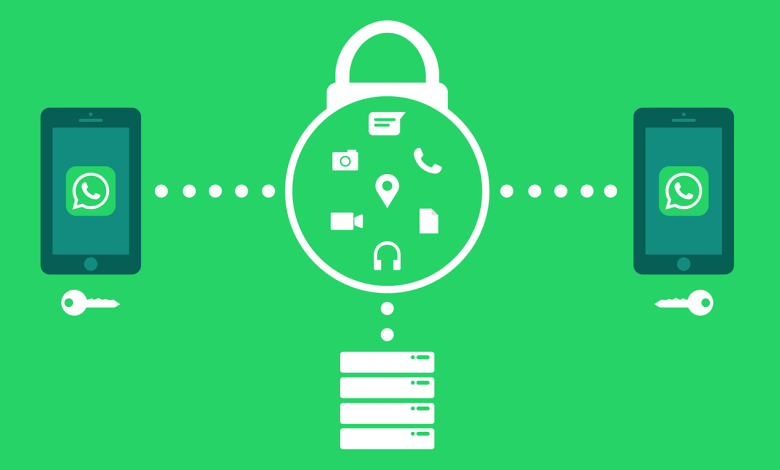
While WhatsApp boasts end-to-end encryption as a default feature, this security measure only protects data in transit. It does not protect your account if someone steals your phone, clones your SIM card, or if you leave your privacy settings wide open. To truly secure your digital footprint, you must take a proactive approach.
In this comprehensive guide for PakWeb.net, we will walk you through the essential privacy settings you must enable today to bulletproof your WhatsApp account.
Secure your WhatsApp Account Today
1. Enable Two-Step Verification (The Golden Rule)
If you do only one thing after reading this article, let it be this. Two-Step Verification (2FA) is your first line of defense against account hijacking.
Hackers often use “SIM swapping” or trick users into sharing their SMS verification codes to take over accounts. Once they have access, they can message your contacts asking for money or compromise your data. Two-step verification adds a unique 6-digit PIN that is required whenever your phone number is registered with WhatsApp again.
How to enable it:
- 1. Open WhatsApp and go to Settings.
- 2. Tap on Account.
- 3. Select Two-step verification.
- 4. Tap Turn On (or Enable).
- 5. Enter a 6-digit PIN of your choice and confirm it.
- 6. Crucial Step: Add an email address. This allows you to reset your PIN if you forget it. Without this email, you could be locked out of your account permanently for 7 days if you forget the PIN.
2. Control Who Sees Your Personal Information
By default, WhatsApp allows any user who has your number to see your “Last Seen,” profile photo, and “About” information. This can be dangerous. Stalkers or scammers can monitor when you are active to target you or use your profile picture to create a fake identity on other platforms.
You should restrict these details to people you actually know.
Recommended Settings:
- Go to Settings > Privacy. * Last Seen & Online: Change this to “My Contacts” or “Nobody.”
- Pro Tip: WhatsApp now allows you to hide your “Online” status as well. Under the “Who can see when I’m online” section, select “Same as last seen.”
- Profile Photo: Set this to “My Contacts.” Never leave this on “Everyone.”
- About: Set this to “My Contacts.”
3. Lock Your WhatsApp with Biometrics
Even if your phone is unlocked, you might not want someone who borrows your device to snoop through your chats. WhatsApp offers a native screen lock feature that requires Face ID (iOS) or Fingerprint (Android) to open the app.
This adds a physical layer of security. If a thief snatches your unlocked phone from your hand while you are using Maps or YouTube, they still cannot access your chats without your biometric verification.
How to enable it:
- Android: Settings > Privacy > Fingerprint lock > Turn on “Unlock with fingerprint.”
- iOS: Settings > Privacy > Screen Lock > Turn on “Require Face ID.”
You can also set the duration for the lock to activate immediately, after 1 minute, or after 30 minutes. We recommend “Immediately.”
4. Audit Your Linked Devices
Many of us use WhatsApp Web or the desktop app for work. However, it is easy to forget to log out, especially if you are using a shared computer at an office or a library. If you remain logged in, anyone using that computer can read your messages and send chats as you.
You should regularly perform a “security audit” of where your account is currently active.
How to Check:
- 1. Open WhatsApp on your phone.
- 2. Tap the three dots (Android) or Settings (iOS) and select Linked Devices.
- 3. Review the list. If you see a device you don’t recognize (e.g., “Google Chrome (Windows)” at a time you weren’t online), tap it and select Log Out immediately.
5. Encrypt Your Chat Backups
This is a setting that 90% of users overlook. While WhatsApp messages are encrypted end-to-end while sending, the backups stored on Google Drive (Android) or iCloud (iOS) were historically not encrypted by default. This meant that if a hacker (or government agency) gained access to your cloud storage, they could read your chat history.
WhatsApp now offers End-to-End Encrypted Backups. When enabled, not even WhatsApp, Google, or Apple can access your backup data.
How to Enable it:
- 1. Go to Settings > Chats > Chat Backup.
- 2. Tap End-to-end Encrypted Backup.
- 3. Turn it on.
- 4. You will be asked to create a password or generate a 64-digit encryption key.
Warning: Do not lose this password. If you lose it and lose your phone, your chat history is gone forever. There is no “forgot password” option for this feature.
6. Manage Group Privacy Settings
Being added to random spam groups is not just annoying; it is a security risk. Scammers use groups to spread phishing links, cryptocurrency scams, and malware. By restricting who can add you to groups, you significantly reduce your exposure to these threats.
How to Restrict Group Adds:
- 1. Go to Settings > Privacy > Groups.
- 2. Change “Who can add me to groups” from “Everyone” to “My Contacts.”
- 3. If you have annoying friends who keep adding you to groups, you can select “My Contacts Except…” and blacklist specific people.
7. Use Disappearing Messages for Sensitive Info
Sometimes, the best way to secure data is to ensure it doesn’t exist anymore. If you are sending passwords, financial info, or personal secrets, use the Disappearing Messages feature.
You can set messages to vanish after 24 hours, 7 days, or 90 days. For highly sensitive photos or videos, use the “View Once” feature. Media sent this way cannot be saved to the recipient’s gallery, cannot be forwarded, and (on most updated versions) cannot be screenshotted.
How to use it:
- Global Default: Go to Settings > Privacy > Default message timer.
- Per Chat: Tap the contact’s name at the top of a chat > Disappearing Messages.
8. Disable “Save to Camera Roll” (Media Visibility)
While primarily a storage tip, this is also a privacy concern. If you receive a photo on WhatsApp, you don’t necessarily want it automatically appearing in your phone’s main photo gallery, where it might be seen by others scrolling through your pictures or backed up to an unencrypted photo cloud.
How to stop it:
- Android: Settings > Chats > Turn off Media visibility.
- iOS: Settings > Chats > Turn off Save to Camera Roll.
9. Security Notifications
WhatsApp has a feature that alerts you if a contact’s security code has changed. The security code changes when a contact reinstalls WhatsApp or changes phones. While usually harmless, a changed code could theoretically indicate that a third party has intercepted the chat (a “Man-in-the-Middle” attack).
Enabling this notification ensures you are aware if the encryption status of a chat resets.
How to Enable:
- Go to Settings > Account > Security notifications.
- Toggle on Show security notifications on this device.
Conclusion: Awareness is the Best Firewall
Configuring these settings on your smartphone will place you in the top 1% of security-conscious WhatsApp users. However, technology can only do so much. The strongest privacy setting is your own awareness.
Never share your 6-digit verification code with anyone—not even if a contact claiming to be a friend asks for it. Be wary of links sent from unknown numbers, and remember that WhatsApp Support will never message you within the app asking for your password or credit card details.
By combining these technical tips with digital street smarts, you can enjoy the connectivity of WhatsApp without compromising your privacy.
For more tips on tech security, health hacks, and the latest news, keep visiting PakWeb.net.