How to Download Facebook Reels Videos Online Easily
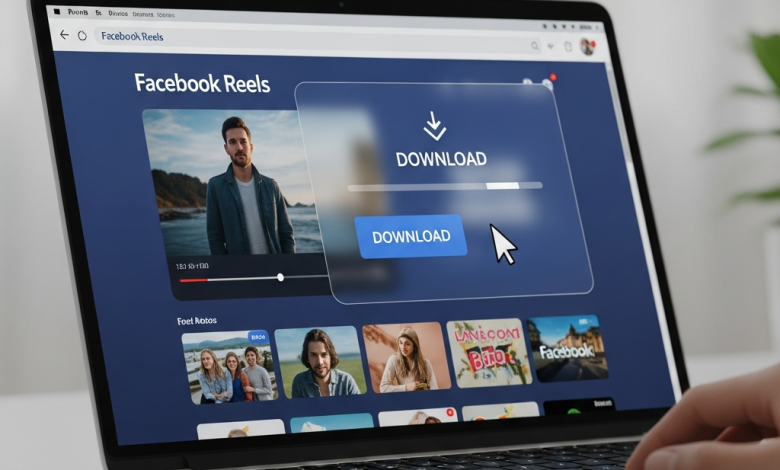
You found a hilarious Reel on Facebook and want to save it. Maybe it’s a recipe you’ll need later, a workout tutorial, or just something worth keeping. Facebook doesn’t make downloading easy, but you’ve got options.
This guide shows you exactly how to save Facebook Reels to your device without paying for software or dealing with sketchy websites. Whether you’re on your phone or computer, these methods work.
Why People Want to Download Facebook Reels
Before we get into the how, let’s talk about the why. People download Reels for all kinds of reasons:
Content Creation: You want to repost or reference someone’s video (with credit, of course). Creators often save inspiration for later projects.
Offline Viewing: Not everyone has unlimited data or reliable internet. Downloading lets you watch without burning through your mobile plan.
Archiving: Some videos disappear. Maybe the creator deletes their account, or Facebook removes content. Downloading protects against losing valuable information.
Sharing Outside Facebook: You want to send a video to someone who doesn’t use Facebook, or you need it for a presentation.
Personal Collection: Some Reels are just too good to lose. Funny moments, family videos, educational content worth keeping.
Whatever your reason, you deserve control over content you want to save.
Important Legal and Ethical Considerations
Hold up. Before downloading anything, understand the rules.
Facebook’s terms of service technically prohibit downloading videos without permission. You’re supposed to share using Facebook’s built-in sharing features.
That said, people download content all the time. Just follow these guidelines:
Respect Copyright: Don’t download and repost someone else’s original content as your own. That’s theft.
Give Credit: If you share downloaded content, always credit the original creator. Tag them, mention their name, link to their page.
Personal Use vs. Commercial: Downloading for personal viewing is different from using someone’s video to make money. The latter requires explicit permission.
Ask When Possible: If you want to use someone’s Reel for anything public, message them and ask. Most creators appreciate being asked.
Follow Fair Use: Educational commentary, criticism, and parody have some protections, but don’t push it.
The bottom line: be respectful. Treat creators’ work the way you’d want yours treated.
Method 1: Using Online Downloader Websites
Online downloaders are the easiest option. You don’t install anything. Just paste a link and download.
How It Works
Step 1: Get the Video Link
Open Facebook and find the Reel you want. On mobile, tap the three dots on the video and select “Copy Link.” On desktop, right-click the video and choose “Copy Link Address.”
Step 2: Choose a Downloader Site
Popular options include FBDownloader, GetFBStuff, and SaveFrom. These sites are free but show ads. Don’t click random pop-ups.
Step 3: Paste and Download
Go to the downloader site, paste your link in the box, and click the download button. The site processes the video and gives you download options.
Step 4: Select Quality
Most sites offer different quality options. Pick HD if available and you have storage space. Lower quality works fine if you’re tight on space.
Step 5: Save to Your Device
Click the final download button. The video saves to your Downloads folder (or wherever your browser saves files).
Pros and Cons
Pros:
- No installation required
- Works on any device with a browser
- Usually free
- Fast and simple
Cons:
- Lots of ads and pop-ups
- Some sites are sketchy
- Quality depends on the site
- No batch downloading
Staying Safe
Stick to well-known downloader sites. If a site asks you to install software or enter personal information, leave immediately. Never give credit card details to download free videos.
Use an ad blocker if possible. These sites survive on ad revenue, but some ads are malicious. Protect yourself.
Method 2: Browser Extensions
If you download Facebook Reels regularly, browser extensions save time.
Popular Extensions
Video Downloader Professional (Chrome, Firefox): Clean interface, works with multiple sites including Facebook.
FBDown Video Downloader (Chrome): Specifically for Facebook content. Adds a download button directly on videos.
Video DownloadHelper (Firefox, Chrome): One of the oldest and most trusted options. Works across many platforms.
Installation and Use
Step 1: Install the Extension
Go to your browser’s extension store (Chrome Web Store or Firefox Add-ons). Search for your chosen downloader and click “Add to Browser.”
Step 2: Grant Permissions
The extension needs permission to access Facebook. Review what it’s asking for. Legitimate extensions need limited access.
Step 3: Browse Normally
Open Facebook and find a Reel. You’ll see a new download button added by the extension, usually near the video or in the corner.
Step 4: Click and Download
Click the download button the extension added. Choose your quality and save location. Done.
Benefits and Drawbacks
Benefits:
- Super convenient once installed
- Cleaner experience than downloader sites
- Often provides multiple quality options
- Works across different social platforms
Drawbacks:
- Only works on computers, not mobile
- Requires trusting the extension with browser access
- Some extensions sell user data
- Occasional compatibility issues with Facebook updates
Safety Tips
Only install extensions with good reviews and many users. Read recent reviews to check for problems. Avoid extensions that haven’t been updated in over a year.
Check permissions carefully. If an extension asks for more access than necessary, skip it.
Method 3: Mobile Apps
Phone users need different solutions since browser extensions don’t work on mobile.
Android Options
Video Downloader for Facebook: Available on Google Play. Simple interface, works well for most videos.
MyVideoDownloader: Another solid choice. Handles Facebook, Instagram, and other platforms.
Friendly Social Browser: A Facebook wrapper with built-in downloading. You browse Facebook through this app instead.
How to Use Mobile Apps
Step 1: Install from Official Store
Download only from Google Play Store or Apple App Store. Side-loading apps from random websites risks malware.
Step 2: Copy the Video Link
In Facebook, tap the three dots on any Reel and select “Copy Link.”
Step 3: Open the Downloader App
Launch your downloader app. Most have a paste button front and center. Tap it, and the app automatically grabs the copied link.
Step 4: Download
Select your quality preference and download. Videos save to your phone’s gallery or downloads folder.
iOS Challenges
Apple restricts downloading apps more than Android. Your best bet on iPhone:
Shortcuts App: Create a custom shortcut using online tutorials. It’s clunkier but works.
Documents by Readdle: This file manager app has a built-in browser. Use it to access web-based downloaders.
Third-Party Apps: Some apps like “Video Saver” work for Facebook, but Apple occasionally removes them. Check current availability.
Mobile App Cautions
Free apps show ads. Expect them. Pay attention during installation to avoid accidentally subscribing to premium features.
Check app permissions. Video downloaders need internet access and storage permissions. They don’t need your contacts, camera, or microphone.
Read reviews before installing. If people complain about malware or excessive ads, find another app.
Method 4: Screen Recording (Last Resort)
When nothing else works, screen recording always does. It’s not elegant, but it’s foolproof.
On iPhone
Swipe down from the top-right (or up from bottom on older iPhones) to open Control Center. Tap the record button. Play the Reel. Stop recording when done. The video saves to your Photos app.
On Android
Swipe down twice to see Quick Settings. Tap “Screen Recorder” (varies by phone). Start recording, play the Reel, stop when finished. Find the recording in your Gallery.
On Computer
Windows: Press Windows Key + G to open Game Bar. Click the record button, play the video, stop when done.
Mac: Open QuickTime Player, choose “New Screen Recording,” select the area, record the video.
Why This Works
Screen recording captures everything on your display. Facebook can’t block it because your device is just recording its own screen. If you need to Download Facebook Reels and other methods fail, this guarantees success.
Downsides
Quality drops slightly. You’re recording a video of a video, which adds compression. Screen recordings include everything on your screen, so you might need to crop or edit afterward. File sizes are larger than direct downloads.
But when you absolutely need to save something and nothing else works, screen recording delivers.
Choosing the Right Quality
Video quality matters. Higher quality means better viewing but larger files.
1080p (Full HD): Best quality available for most Reels. Looks great on any screen. File size: 50-100 MB per minute.
720p (HD): Still very good quality. Perfect balance between clarity and file size. File size: 25-50 MB per minute.
480p (SD): Acceptable for small screens. Good if you’re low on storage. File size: 10-20 MB per minute.
360p or lower: Only if you’re desperate for space. Quality is noticeably poor on anything larger than a phone screen.
Pick based on how you’ll watch. For archiving or sharing, go HD or higher. For quick personal reference, SD works fine.
Organizing Your Downloaded Videos
Downloaded videos pile up fast. Stay organized:
Create Folders: Sort by topic, creator, or date. “Recipes,” “Workouts,” “Funny,” etc.
Name Files Clearly: “Pasta Recipe – Chef John – Sept 2024” beats “download_1347.mp4”
Back Up Important Ones: Use cloud storage or external drives. Phone storage fails sometimes.
Delete What You Don’t Need: Review your collection monthly. If you haven’t watched it in three months, you probably won’t.
Troubleshooting Common Problems
“Link Not Working”
Make sure you copied the entire link. Try a different downloader site. Some videos have download restrictions.
“Video Won’t Play After Downloading”
Check the file format. Try opening with a different media player like VLC. The download might have been corrupted. Try downloading again.
“Download Button Not Appearing”
Facebook updates break downloader tools regularly. Check if your extension needs updating. Try a different method.
“Quality Is Terrible”
The original video might be low quality. Facebook compresses heavily. Try a different downloader. Some preserve quality better than others.
“File Size Is Huge”
You probably downloaded the highest quality. Re-download at a lower resolution if space is an issue.
Respecting Creators While Downloading
Downloading content doesn’t mean ignoring creators. Show respect:
Tag the original creator if you share the video anywhere. Give credit in captions. Link back to their profile when possible.
Don’t remove watermarks. If a creator watermarked their video, leave it. That’s their signature.
Consider supporting creators you download from regularly. Follow their pages, like their content, engage with their posts. If they sell products or services, check them out.
Ask permission for commercial use. If you’re using someone’s Reel in anything that makes money (ads, sponsored content, business presentations), get their written consent.
Remember, creators put time and effort into their content. The least you can do is acknowledge them.
Alternative: Save Within Facebook
Facebook offers a built-in save feature. Tap the three dots on any Reel and select “Save Video.” This doesn’t download it, but bookmarks it in your Saved collection.
Pros:
- Completely legal and within Facebook’s terms
- No storage space used
- Always plays at original quality
- Organized automatically
Cons:
- Requires internet to view
- If the creator deletes it, your save disappears
- Can’t share outside Facebook easily
- No offline access
This works great for casual saving when you don’t need permanent offline access.
Making Smart Download Choices
Not every video needs downloading. Ask yourself:
Will I watch this again? If not, just save the link or use Facebook’s save feature.
Is this time-sensitive? News and trending content loses value quickly. Maybe skip downloading.
Can I find this elsewhere? If it’s widely available on YouTube or other platforms, download from a more download-friendly site.
Do I have permission? When in doubt, ask the creator or just share using Facebook’s tools.
Is my storage running low? Be selective about what you keep.
Moving Forward
Downloading Facebook Reels isn’t complicated once you know your options. Pick the method that fits your device and needs. Use online downloaders for occasional saves, browser extensions if you download regularly on desktop, or mobile apps for phone convenience.
Always respect creators’ rights and give credit where it’s due. Download responsibly, store content you actually need, and delete what you won’t watch again.
The tools exist. The choice is yours. Find a Reel worth keeping? Now you know exactly how to save it.