Lost Important Files? Here’s How to Recover Files on Windows

With modern recovery technology, oftentimes the deleted and lost files stay on your drive long after you think they’ve vanished. Those files can be located and recovered in a timely and secure manner with the proper tool.
Why Your Data Disappears
Whether it’s photographs from family vacations, work papers, financial records, or irreplaceable memories, we place some of our most important belongings in our computers. However, when that data loss occurs, it can happen at any time and come with devastating consequences. Fortunately, the majority of lost files are recoverable – provided that you act swiftly and employ the appropriate recovery tool.
Let’s look at the most common scenarios that result in data loss on Windows:
- Accidental deletion: When you press Delete or empty the Recycle Bin, but by mistake, a file that you wanted to keep is deleted.
- The formatting of hard drives: If you accidentally format a drive during a Windows reinstall or partition setup, all your data is lost in seconds.
- Sudden crashes: If the system crashes, an unexpected shutdown, or Blue Screen of Death can corrupt files and prevent them from being accessed.
- Partition loss: If any drives are missing from File Explorer, it may be due to disk partition errors or incorrect disk partition operations.
- Virus or malware attacks: Your files may be deleted, encrypted, or hidden by a virus or malware without warning.
- Power failures: If the power goes off during a write operation, files might not be written fully or correctly.
The loss of files can be caused by a variety of reasons, but the good news is that it is not an insurmountable problem. Keep reading to learn how a specially designed recovery instrument can restore them..
RecoverGo Windows Data Recovery
iToolab RecoverGo Windows Data Recovery is one of the most potent and user-friendly tools for reliable file recovery on Windows in 2026. RecoverGo is easy to use and doesn’t cause stress, even for tech novices and experienced users alike.
Key features include:
- Support for multiple file types: Restores documents, photos, video files, audio files, emails, archives and so much more from nearly all file formats.
- Multiple recovery scenarios: Accidental deletion, formatted drives, crashed systems, lost partitions, RAW drives, and virus-attacked storage.
- Deep scan technology: Provides more than a surface scan and finds files that are deeply buried or lost otherwise.
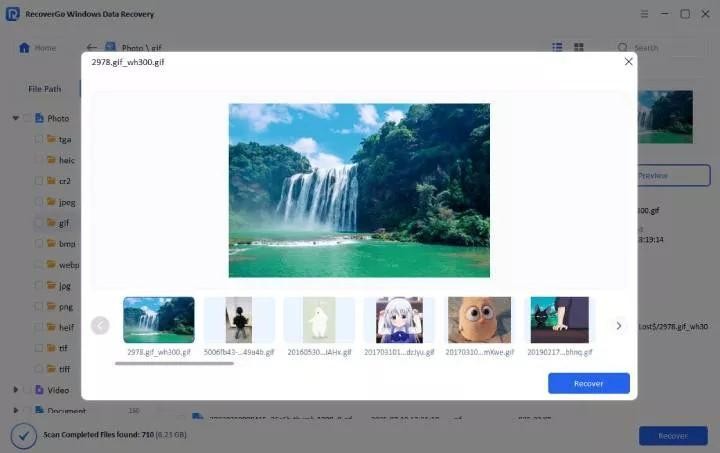
- Preview before recovery: Browse and preview recovered files before copying them; only save what you need.
- Extensive Compatibility: Works with internal hard drives, SSDs, USB flash drives, SD cards, external hard drives, and more.
- Windows 11 ready: 100% compatible with Windows 11, 10, 8, and 7 (64-bit systems).
RecoverGo has been used by millions of people in the world and provides a high recovery rate in all kinds of situations with data loss.
How to Recover Lost Files with RecoverGo
RecoverGo can recover your files in just minutes. These are some simple steps to begin your recovery:
Step 1: Download and Install RecoverGo
Download and install RecoverGo Windows Data Recovery from the official iToolab website to your PC. Note: You should install the software on a different drive than where your lost files are so that you don’t overwrite any data that may be recoverable.
Step 2: Select a Location to Scan
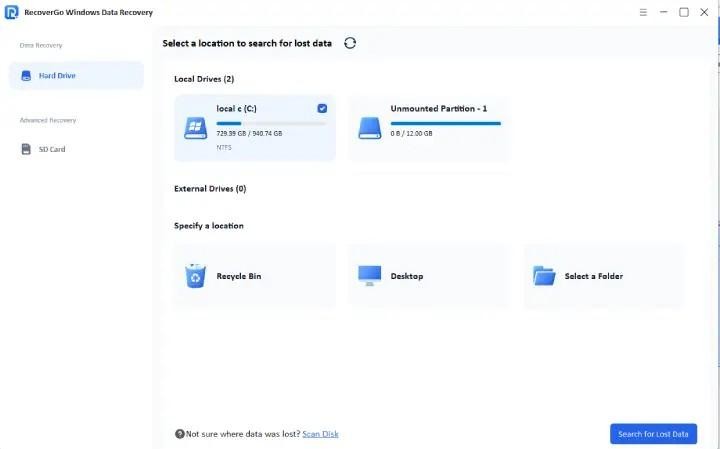
Once you have started RecoverGo, you will be shown a list of drives and storage locations on your computer, including local drives, external drives, and the Recycle Bin.
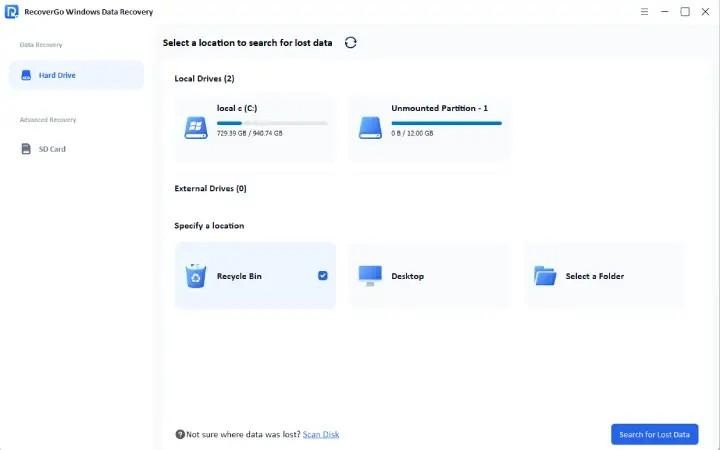
Select the drive or folder that your files are last known to be on, and then click the “Search for Lost Data” button to search.
Step 3: Scan and Preview Results
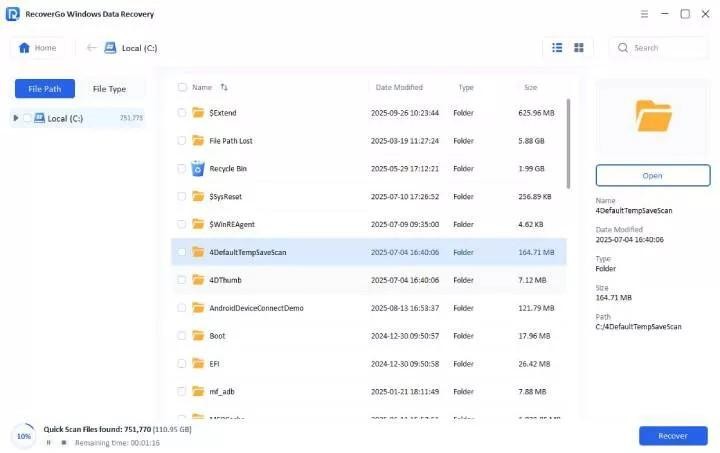
RecoverGo will do both a quick scan and a deep scan to recover as many files as possible.
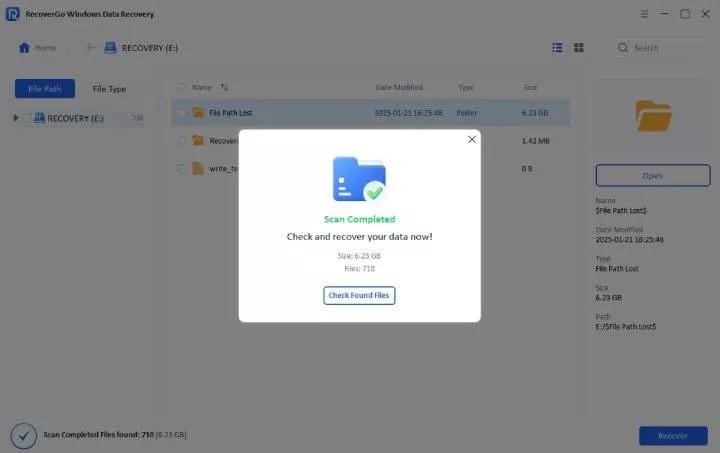
After the scan is done, you will be able to filter the results by file type (photo, document, video, etc.) and search by file name. To be certain that a file contains what you need, click the “Preview” button on any file prior to recovery.
Step 4: Recover Your Files
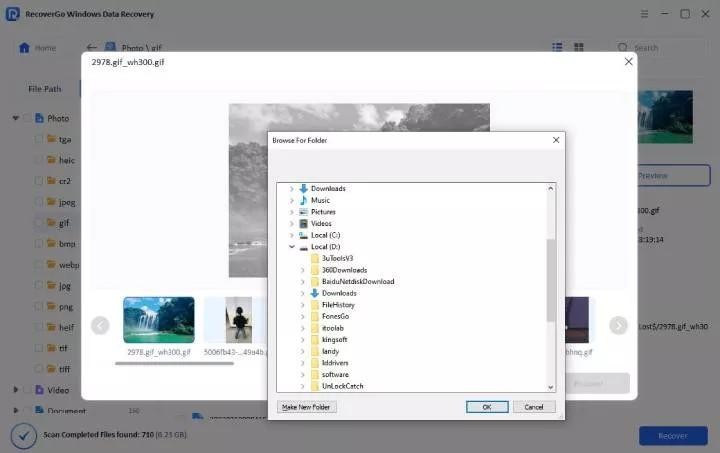
Choose the files you wish to recover, click on the “Recover” button, and then select an appropriate safe destination folder on another drive to save the files.
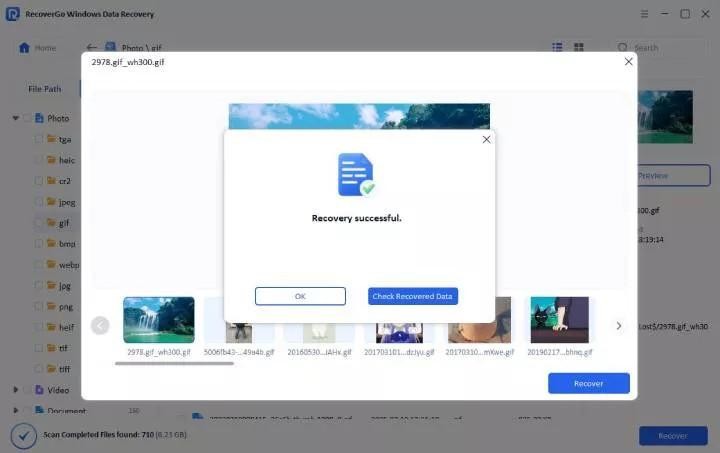
Your files will be restored and available in no time. Clicking on Check Recovered Data will immediately check the results.
Conclusion
Data loss can happen on a Windows computer very frequently, and most users, at least one time, will experience it. Any click that happens by chance, a hardware issue, or malicious activity can potentially lose important files and be stressful and costly. Ultimately, however, data loss doesn’t necessarily mean data lost forever.
In the modern world of recovery technology, certain lost and deleted files are not lost at all, but are simply hidden from sight. These files can be easily identified and retrieved with the appropriate software.
iToolab RecoverGo Windows Data Recovery is an easy-to-use, powerful, and reliable data recovery solution for anyone who has suffered from Windows data loss. Offering extensive file format compatibility, powerful scan features, and an easy-to-use interface, RecoverGo makes it easier than ever to recover your precious files — even if you don’t have any technical expertise.